


The Stripe “Bulk Invoice Generator and Importer” app documentation provides a comprehensive guide on how to efficiently upload and manage large volumes of invoice data into your Stripe account. This app is designed to streamline the process, eliminating the need for manual entry, and offering step-by-step instructions for a seamless experience.
In this documentation, you’ll find:
Whether you’re a new user or an experienced one, this documentation ensures that you can maximize the benefits of the Stripe “Bulk Invoice Generator and Importer” app, enabling fast and error-free data management.
We provide a quick and easy 3-step workflow for bulk importing invoice data—effortless and straightforward, with no technical expertise needed!
Here you’ll find Guidelines on downloading and preparing your CSV file for importing invoice data, including field details and format requirements.
The ID of the customer who will be billed.
The customer’s email address. Until the invoice is finalized, this field will equal customer.email. Once the invoice is finalized, this field will no longer be updated.
An arbitrary string attached to the object. Often useful for displaying to users. Referenced as ‘memo’ in the Dashboard.
A maximum of 250 line items is allowed per invoice.
The currency to create this invoice in. Three-letter ISO currency code, in lowercase. It must be a supported currency. Click on the links to learn more details.
Amount for an invoice.
The invoice item quantity is the number of units for which the customer is billed or invoiced.
The date on which payment for this invoice is due.
Note : This value will be null for invoices where collection_method=charge_automatically.
The Due Date must be a future date, formatted as DD-MM-YYYY (e.g., 22-10-2025), as it is compatible with Stripe’s requirements.
The scheduled payments feature isn’t available if the invoice is due the same day, next day, or is already past due. You can’t schedule a payment that’s 60 days or more out from the current date. For example, you can’t schedule a payment for February 21, 2022, if the current date is December 23, 2021.
The status of the invoice is one of draft, open, paid, uncollectible, or void. Learn more
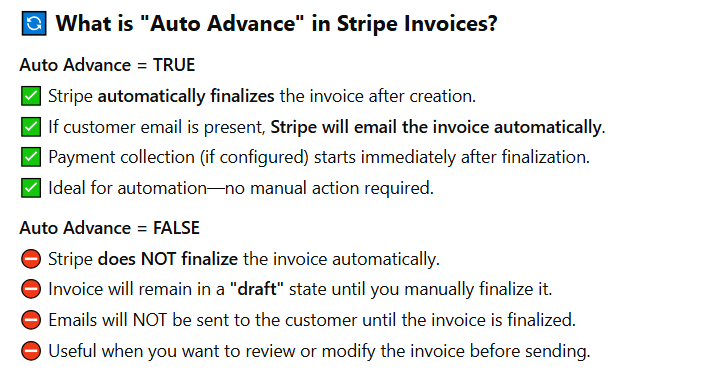
Controls whether Stripe performs automatic collection of the invoice.
Either true or false.
If false, the invoice’s state doesn’t automatically advance without an explicit action.
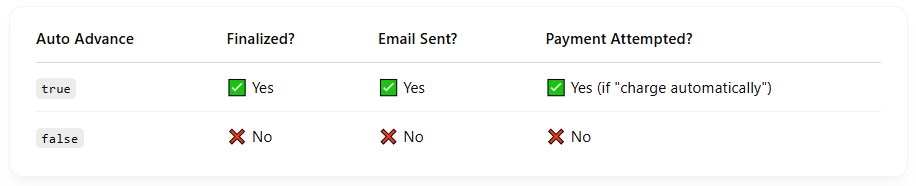
Either charge_automatically or send_invoice.
When charging automatically, Stripe will attempt to pay this invoice using the default payment method source attached to the customer.
When sending an invoice, Stripe will email this invoice to the customer with payment instructions.
Defaults to charge_automatically.
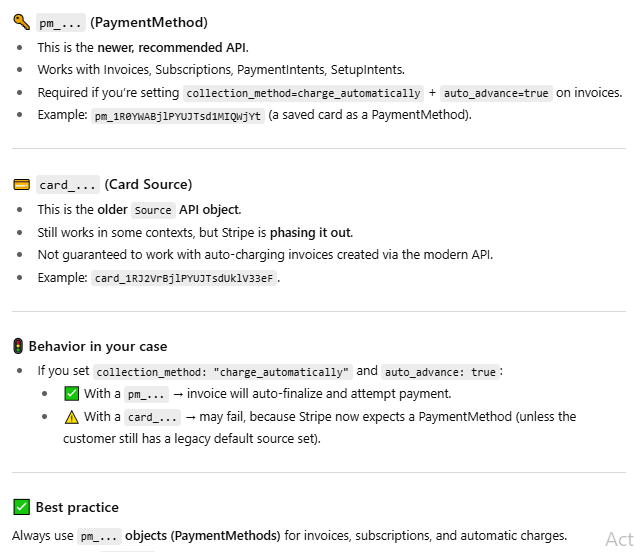
ID of the default payment method for the invoice. It must belong to the customer associated with the invoice.
If not set, defaults to the subscription’s default payment method, if any, or to the default payment method in the customer’s invoice settings.
Example = pm_1R0YWABjlPYUJTsd1MIQWjYt or card_1RJ2VrBjlPYUJTsdUklV33eF
The ID of the subscription to invoice, if any. If set, the created invoice will only include pending invoice items for that subscription. The subscription’s billing cycle and regular subscription events won’t be affected.
Set of key-value pairs that you can attach to an object. This can be useful for storing additional information about the object in a structured format. Individual keys can be unset by posting an empty value to them. All keys can be unset by posting an empty value to metadata.
Example = Company: John Doe Pty Ltd, Profession: Manager
A list of up to 4 custom fields to be displayed on the invoice.
Example = Client ID: CL-10293, Project Name: CRM Migration
Note : The name of the custom field. This may be up to 40 characters.
Note : The value of the custom field. This may be up to 140 characters.
Footer displayed on the invoice.
Important Note: The required fields must be completed and formatted correctly according to the provided instructions.
Important Note: Metadata & Custom_Fields format must be in key-value pairs like Company:John Doe Pty Ltd, Profession:Manager
Important Note: To avoid errors and any inconvenience, please ensure that you follow the provided format carefully and only add/edit the relevant fields. If you do not have complete invoice data, you may leave the other columns empty which are not required.
Please find a detailed walkthrough on how to upload your invoice data, handle errors, and monitor progress.
After uploading, the app will perform a data validation check to identify any formatting or data inconsistencies. If any errors are found:
By following these steps, you can easily upload bulk invoice data to your Stripe account, saving time and minimizing errors. For more detailed information, refer to the faq, documentation or contact our support for assistance.
Find answers to common questions about our services, features, and processes. We’ve compiled helpful information to guide you through every step.
The app automatically generates and imports large volumes of invoices into your Stripe account within seconds—helping you charge customers automatically, send invoices, and collect payments effortlessly. Seamless, straightforward, and no technical expertise needed!


Copyright © 2024 Stripe "Bulk Invoice Generator and Importer" app. All Rights Reserved. Powered by ASRRCRM.
